


With millions of users worldwide, Drupal is known as one of the world’s most popular content management systems. In order to achieve and experience advantageous features and newest enhancements, it is unavoidable for users to update the latest versions of Drupal. However, there are some issues that developers may face with every update.
Thus, in this article, Kyanon Digital aims to provide you with common Drupal problems after updates and all you need to know.
Key takeaways:
- Drupal updates (core, modules or themes) often introduce compatibility issues – missing or outdated modules/themes may break the site or prevent configuration from loading.
- Deprecated code and API changes in newer Drupal versions can cause existing (custom) functionality, templates or modules to fail.
- Updates may lead to site performance degradation, including slower load times or inefficient resource usage if not properly optimized.
- Even after updating, security risks remain if modules/themes are outdated or if there’s no thorough testing and backup strategy in place.
- A robust update process must include: pre‑update audit of modules/themes, code review, backups, testing in staging, and post‑update performance & security checks.
Further reading:
Common Drupal Problems After Updates
Updating Drupal is essential to access the latest features, security patches, and performance improvements. However, each update can introduce unexpected challenges. From missing or incompatible modules to deprecated code, performance slowdowns, and potential security risks, developers often face a range of issues after updating.
Understanding these common problems can help you plan updates more effectively and maintain a stable, secure website.
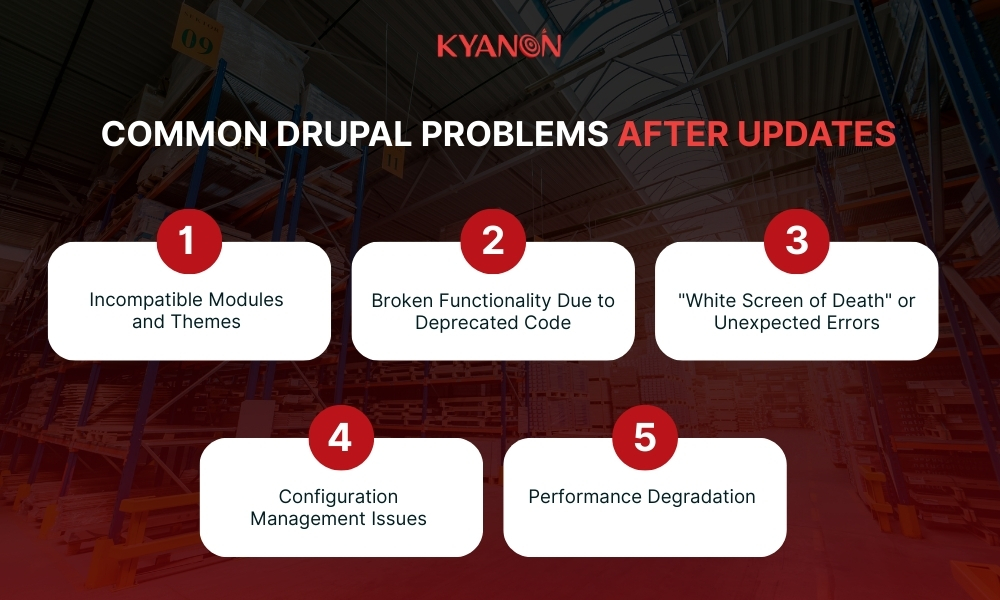
Incompatible Modules and Themes
The most frequent issue is that existing contributed or custom modules and themes are not compatible with the new version of Drupal core or PHP.
Solution: Before updating, use the Upgrade Status module to identify compatibility issues. Update modules to their latest versions or find alternative, compatible modules. If the module is missing, redownload it from Drupal.org.

The module or theme is incompatible with the installed version of Drupal
Source: Drupal.org
Broken Functionality Due to Deprecated Code
Updates, especially major version upgrades, often involve removing old code (deprecations). Relying on deprecated functions will cause parts of the site to break.
Solution: Check error logs for deprecated function calls. Use tools like Drupal Rector to automatically fix some of this code in custom modules.
“White Screen of Death” or Unexpected Errors
A common and frustrating problem is the site becoming completely inaccessible, often displaying a generic “The website encountered an unexpected error” message.
Solution:
- Enable verbose error reporting to see the specific error message.
- Run update.php from your browser (http://your-site-url/update.php) to apply database updates after the file transfer.
- Run rebuild.php to rebuild the service container if the site is totally broken.
- Clear the cache using drush cache:rebuild (or drush cr) via the command line, or by manually truncating cache tables in the database if CLI access is unavailable.
Configuration Management Issues
Configuration changes (e.g., new content types, views, etc.) might not transfer smoothly between environments (local, staging, production) after updates, leading to conflicts or missing settings.
Solution: Utilize Drupal’s configuration management system to export and import configurations reliably. Address conflicts manually using the command line tools (Drush or Composer) to ensure consistency across environments.
Performance Degradation
Sometimes a site may run slower after an update due to new software changes, unoptimized settings, or issues with the hosting environment.
Solution:
- Optimize your website’s caching settings (e.g., page, render, dynamic cache).
- Aggregate and minify CSS/JS files.
- Use performance profiling tools like Blackfire to pinpoint bottlenecks.
- Consider a Content Delivery Network (CDN).
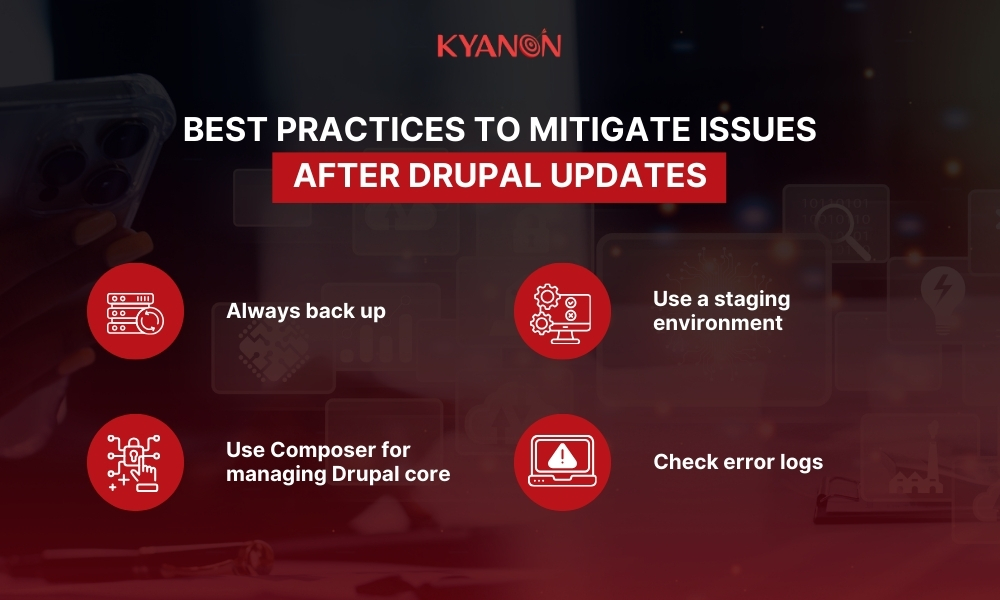
Best practices to mitigate issues after Drupal updates
- Always back up: Before performing any update, always make a complete backup of your database and site files.
- Use a staging environment: Never update your production site directly. Test all updates in a staging environment first to catch issues safely.
- Composer: Use Composer for managing Drupal core and module dependencies. It streamlines updates and manages compatibility requirements.
- Check error logs: Regularly monitor your site’s error logs (found under Reports > Recent log messages in the admin menu).
Conclusion
Updating Drupal latest version places importance on deriving the benefits of newest features and scalability. However, any updates can result in some common problems. It is critical to keep in mind that before having any updates, you should always make a backup of your website, and not forget to test after performing any adjustments.
As a trusted technology partner, Kyanon Digital specializes in Drupal development, helping businesses build, maintain, and optimize high-performance websites. With extensive experience in custom modules, theme development, updates, and migrations, our team ensures smooth Drupal upgrades while minimizing downtime, resolving compatibility issues, and maintaining security.
Whether you need expert guidance or end-to-end Drupal solutions, contact Kyanon Digital for achieving scalable and future-proof digital experiences.